
All chapters (5/12)
User Guide / Chapter 5
Smart Switches
Pair your in-game Smart Switches so teammates can turn SAM Site or turret power on and off remotely with one chat command.
Open Smart Switches
(Screenshots show the Chinese version of the app. Switch the app to English from the language menu in the top bar. Button names below are the English labels, followed by the Chinese label so you can match the screenshots.) Find the server in My Servers (我的伺服器) and click Smart Switch (智慧開關). The Smart Switches (智慧開關管理) window opens. If you haven't paired any yet, it says "No Smart Switches connected yet (還沒接上任何智慧開關)".
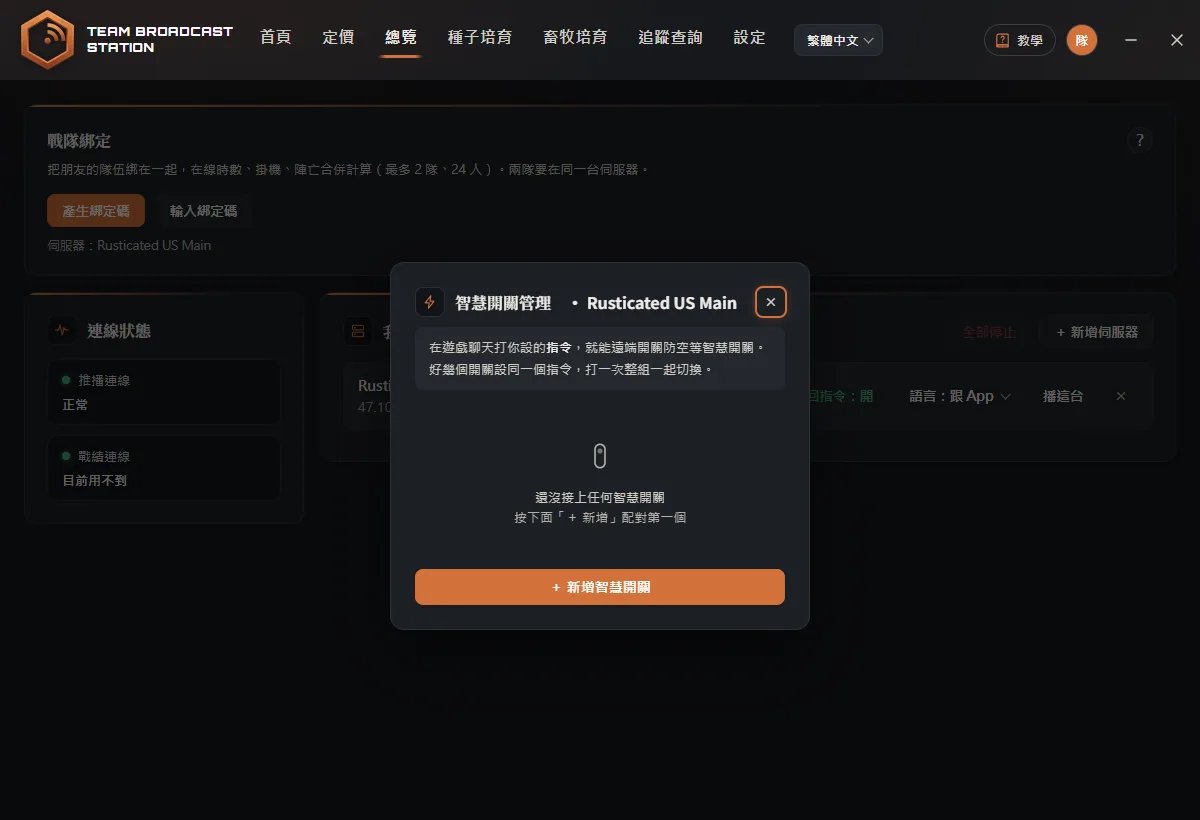
Click + Add Smart Switch (+ 新增智慧開關)
Click + Add Smart Switch (+ 新增智慧開關) at the bottom of the window. An input box appears.
Pick a short, memorable alias
Type a name for the switch in the box, for example "aa", then click Start Pairing (開始配對). The window shows "Waiting for pairing… (監聽配對中…)".
TipThe alias is the word you type after !sm in the game later. Shorter is easier to type.Pair the switch in the game
Switch back to the game, look at the Smart Switch, hold E, and choose Pair.
TipDo this within 5 minutes. If time runs out, click Start Pairing (開始配對) again.Confirm it's the right one
The app shows "Pairing detected: (偵測到配對)" with the device ID and asks "Is this the switch you want? (這是你要的那個開關嗎?)". If yes, click Yes, This One (是這個) and the switch appears in the list. If not, click Not This One (不是這個) and try again.
Set the auto-restore time
Each switch has its own row in the list. Enter a time under Auto-restore after (自動恢復) and choose sec (秒) or min (分鐘). After the switch is turned off, it turns back on automatically when the time is up. The minimum is 10 seconds.
Custom command (optional)
In the Command (指令) field you can enter your own command, for example !sp. If you leave it empty, the switch uses "!sm alias". Give several switches the same command to toggle the whole group at once.
Choose which channel it works in
This channel option only controls where your custom command (for example !sp) works: Team + Clan (隊伍+戰隊), Team chat only (只有隊伍頻道), or Clan chat only (只有戰隊頻道). "!sm alias" always works like the other commands, in the channel the app broadcasts to. Click Save (儲存) when you're done.
Use it in the game
When a teammate types "!sm aa" (or your custom command) in chat, the switch turns off and chat shows that aa was turned off, who did it, and when it will turn back on. When time is up, chat says aa is back on. To turn it back on early, type the same command again.
TipThe server must be broadcasting (Start (播這台)) with Chat Commands: On (回指令:開), or !sm and custom commands won't do anything. After a switch is toggled, wait 10 seconds before toggling it again.Remove a switch
To remove a switch you don't need, click ✕ on its row. After you confirm, it can no longer be toggled remotely from the game.
FAQ
Who can use !sm?
Any teammate who can type in that channel. You don't need to set up a list.
!sm says "No switch named …"?
The alias is misspelled or the switch isn't paired yet. Type just !sm to see the names of the switches you've set up.