All chapters (2/12)
User Guide / Chapter 2
Connect Rust+ Notifications
Let this PC receive the pairing, death, and alarm notifications the game sends. This is the official Rust login, and you only do it once.
Go to Overview (總覽)
(Screenshots show the Chinese version of the app. Switch the app to English from the language menu in the top bar. Button names below are the English labels, followed by the Chinese label so you can match the screenshots.) Subscribe first (without a subscription, Overview only shows a "Not Subscribed (尚未訂閱)" card). Click the Overview (總覽) tab at the top. The first time, you see a card for connecting Rust+ notifications. Other features appear only after you finish this step.
In mainland China, turn on your VPN first
Rust+ notifications are delivered through Google. If you're in mainland China, turn on your VPN before the next step.
Click Connect Rust+ (連接 Rust+)
Click Connect Rust+ (連接 Rust+) on the card. If Steam is running on your PC, the login page opens right in Steam. Just click Log In.
TipThis is the official Rust (Facepunch) login, and it's separate from logging in to Team Broadcast Station. Only Rust's official service issues the Rust+ token the app needs to broadcast. Even if you log in to the app with Steam, you still click Log In here once, and you won't need to again. If you log in to the app with Steam, the app asks you right after login whether you want to connect.If Steam doesn't respond
While Steam is opening, a link appears under the card: "Steam not responding? Log in with the built-in window (Steam 沒反應?改用內建視窗登入)". Click it to log in through a small window inside the app.
You see "Linked!"
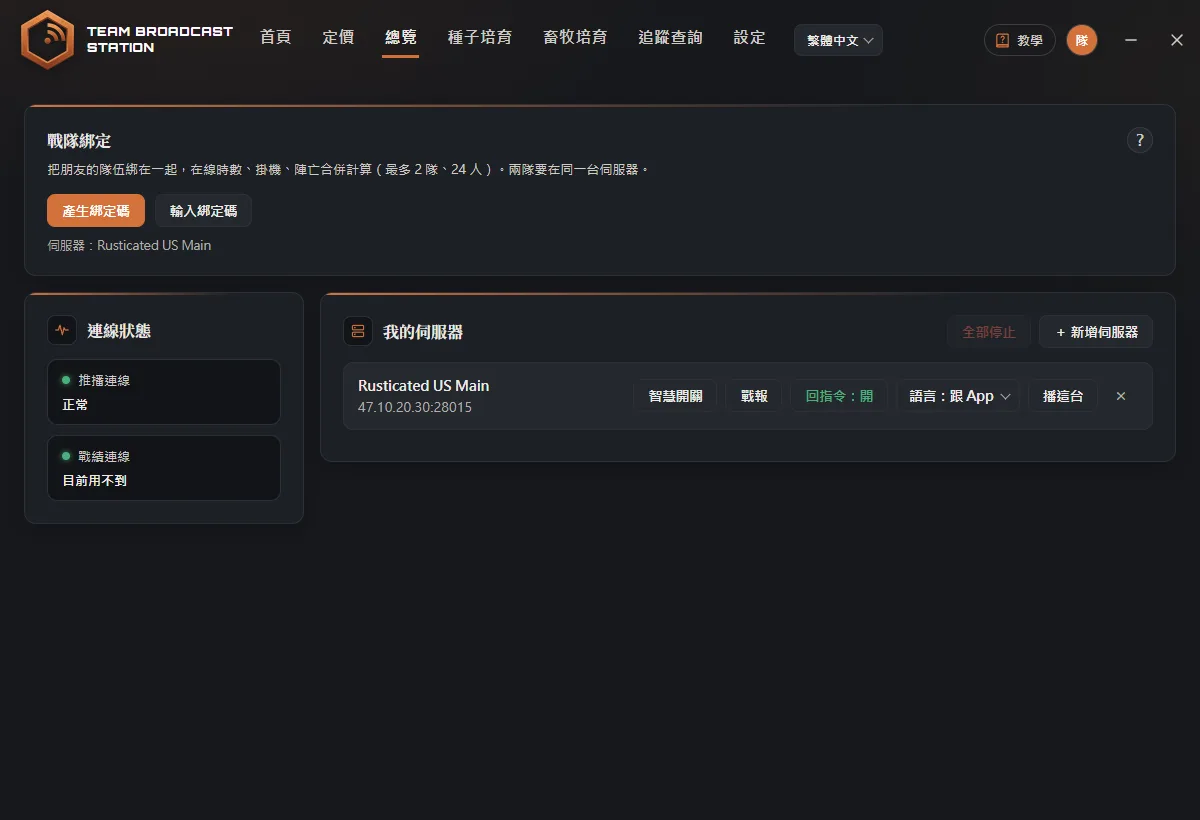
When you're done, the card shows "✅ Linked! (✅ 綁定成功!)". Overview then shows Team Link (戰隊綁定), Connection Status (連線狀態), and My Servers (我的伺服器), and the app automatically walks you through the Overview tour.
Read Connection Status (連線狀態)
Connection Status (連線狀態) on the left normally shows just one box, Rust+ Pairing (推播連線), which receives death, alarm, and pairing notifications. A green light with OK (正常) means it's working. If you have Rustoria servers, a red Stats Source (戰績連線): Sign-in needed (需要登入) box appears the first time (it's used to look up kills and gathering). Click Log In (登入) and sign in with Steam once; after that the app renews it automatically in the background and the box goes away.
TipIf you don't play on a Rustoria server, you won't see the Stats Source (戰績連線) box at all. That's normal.If you see a red outline, click the button next to it
If Rust+ Pairing (推播連線) shows May be expired (可能已過期) with a red outline, click Re-pair (修復) next to it and log in to Steam again the same way. If the Stats Source (戰績連線) box appears again with a red outline, click Sign in again (重新登入) next to it.
TipWhen something is wrong, the app icon on your taskbar also shows a red dot, so you can see it without switching windows.
FAQ
Why do I need to log in to Steam again after logging in to the app?
Logging in to the app confirms your subscription account. Logging in to Steam lets Rust+ send notifications to this PC. They do different things, and you need both.
Can I use a different Steam account from the one I play on?
We don't recommend it. Rust+ pairing and notifications follow your in-game account, so you need to use the same account to receive them.
Do I need the Rust+ app on my phone?
No. Team Broadcast Station on PC connects to Rust+ by itself. If you also want the map and alerts on your phone, scan the code at teambroadcaststation.com/rustplus to get the official Rust+ app.