
All chapters (8/12)
User Guide / Chapter 8
Gene Breeding
Scan or type in your seed genes, and the app plans the 3×3 layout in a Large Planter Box so you can breed better genes round by round.
Learn the gene letters
(Screenshots show the Chinese version of the app. Switch the app to English from the language menu in the top bar. Button names below are the English labels, followed by the Chinese label so you can match the screenshots.) Each plant has 6 letters. G (grows faster), Y (more yield), and H (hardiness) are good letters. W (uses lots of water) and X (does nothing) are bad letters.
TipFirst time? Expand "First time? Click here to see how it works (第一次用?點這裡看怎麼玩)" at the bottom of the page.Pick a crop tab
Open the Seeds (種子培育) tab. The tabs at the top are red berry, blue berry, green berry, yellow berry, white berry, corn, pumpkin, potato, hemp, and wheat. Each crop is tracked separately, so nothing gets mixed up.
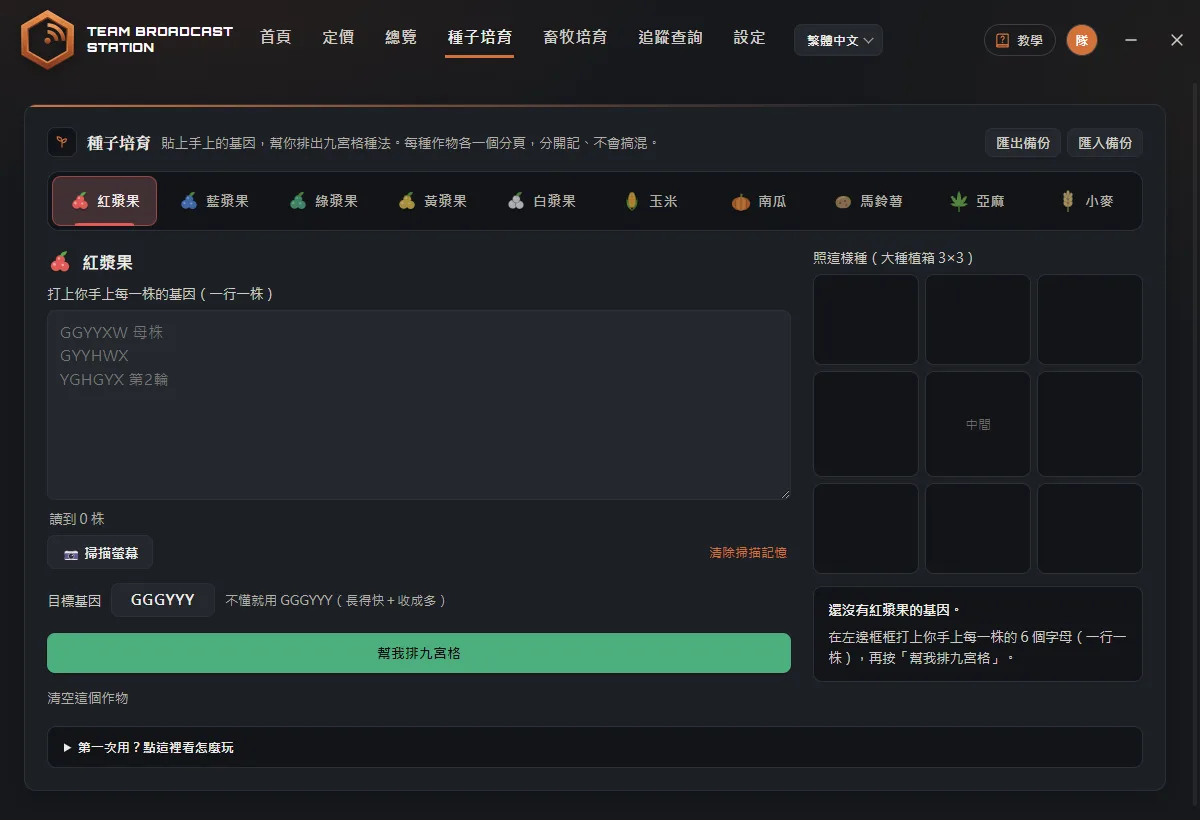 TipRight-click a tab to clear all records for that crop at once.
Click Scan Screen (掃描螢幕)
Click 📷 Scan Screen (📷 掃描螢幕). The button changes to ■ Stop Scan (■ 停止掃描). Go back to the game and click a seed in your inventory, or look at a planted sapling. The app records the genes automatically, files them under the right crop tab, and plays a sound.
TipLooking at planted saplings is the most accurate. The game must be in fullscreen with UI scale at 1.00, and Windows HDR must be off. The first time a crop is scanned, it goes into whatever tab you're on, so switch to that crop's tab before you scan it for the first time. The app doesn't scan while its own window is in front; switch back to the game.Things to know while scanning
Keep the app on the Seeds (種子培育) page while scanning; switching pages stops it. It also stops automatically if it sees no genes for 10 minutes or after 30 minutes total (while scanning, a red "● Scanning (click to stop) (● 掃描中)" shows at the top of the app; click it to stop). If something was recorded wrong, click Undo Last (撤銷上一筆).
TipIf it keeps misreading letters or filing the wrong crop, click Reset Scan Memory (清除掃描記憶) so it learns again. Your breeding records are not deleted.Or type them yourself
If scanning isn't convenient, type 6 letters in the box on the left, one plant per line. You can add a note after it, for example "GGYYXW parent". The box shows "Found N plants (讀到 N 株)" underneath.
Set your target genes
Target genes (目標基因) defaults to GGGYYY (fast growth and high yield). You can change it to whatever you want.
Click Plan My 3×3 (幫我排九宮格)
Click the green Plan My 3×3 (幫我排九宮格) button. The right side shows how to plant the 3×3 Large Planter Box, how many rounds it takes, and whether the result is "100% certain (100% 確定)" or needs some luck.
TipClick Why this layout? (為什麼這樣排?) for an explanation of each round. Below the result is "I have − 1 + Large Planters (我有 − 1 + 個大種植箱)"; click + / − to adjust, and the app compares which approach is faster. Under Settings & Prediction Accuracy (設定與預估準確度) you can check "100% certain layouts only (只要 100% 確定)".Step 1: plant the center first
Follow "Step ① (第 ① 步)" on the right: plant the specified plant in the center of the Large Planter Box (use a clone of it), then click Center Planted (我種好中間了). The app starts a countdown. The countdown is about 12 minutes. If the server has a faster growth rate, click Already Halfway (已經長到一半了) once the center plant is halfway through the Seedling stage. If you placed the wrong one, click Start Over (重來).
TipYou must use a Large Planter Box.Step 2: plant the outer ring when time's up
When the countdown ends, the app notifies you that it's Outer Ring Time (可以種外圍了). Plant the outer ring following the 3×3 layout, leave the slots marked Empty (留空) unplanted, then click Outer Ring Planted (外圍也種好了).
Record the result when it's grown
Planted boxes move to Growing (種植中). When the center plant is grown, type its 6 letters into that box and click Record Result (記錄結果). The app plans the next round and uses your actual results to calibrate, so it gets more accurate the more you use it.
TipTo remove a box you don't need, click Discard This Box (這箱不要了).Clear out useless plants
In the Your Plants (你的苗) list, plants marked Cull (建議淘汰) can be pulled without affecting future layouts. Click See why for each plant (看每一株的理由) to see why.
TipTo be safe, take a clone before you pull it.Target reached
When you see "Target reached! (已經達標!)", you don't need to crossbreed anymore. Hold E on that plant to take clones and plant them in bulk. Clones have exactly the same genes.
Back up your records
Breeding records are only stored on this PC. Before you switch PCs or reinstall Windows, or to hand off to a teammate, click Export Backup (匯出備份) in the top-right. On the new PC, click Import Backup (匯入備份) to restore.
TipImporting replaces the records currently on this PC. You can also drag the backup file onto this screen.
FAQ
Scanning keeps saying "No genes seen yet (還沒看到基因)"?
Make sure the game is in fullscreen, UI scale is 1.00, and Windows HDR is off. Looking at planted saplings usually works best.
The actual result doesn't match the estimate?
Some layouts depend on luck, or a letter may have been entered wrong. The app reminds you to double-check and uses your real results to switch to a more accurate model automatically.
Can I get my breeding records back after my subscription expires?
Yes. The locked screen has an Export My Breeding Records (匯出我的培育紀錄) button, so you can save your data anytime.