
All chapters (3/12)
User Guide / Chapter 3
Add a Server and Start Broadcasting
Pair the servers you play on, then click once to post teammates going online/offline, deaths, AFK, and map events to in-game chat automatically.
Join the game first
(Screenshots show the Chinese version of the app. Switch the app to English from the language menu in the top bar. Button names below are the English labels, followed by the Chinese label so you can match the screenshots.) Finish "Connect Rust+ Notifications" first. Then launch Rust and join the server you want to broadcast on.
Click + Add Server (+ 新增伺服器)
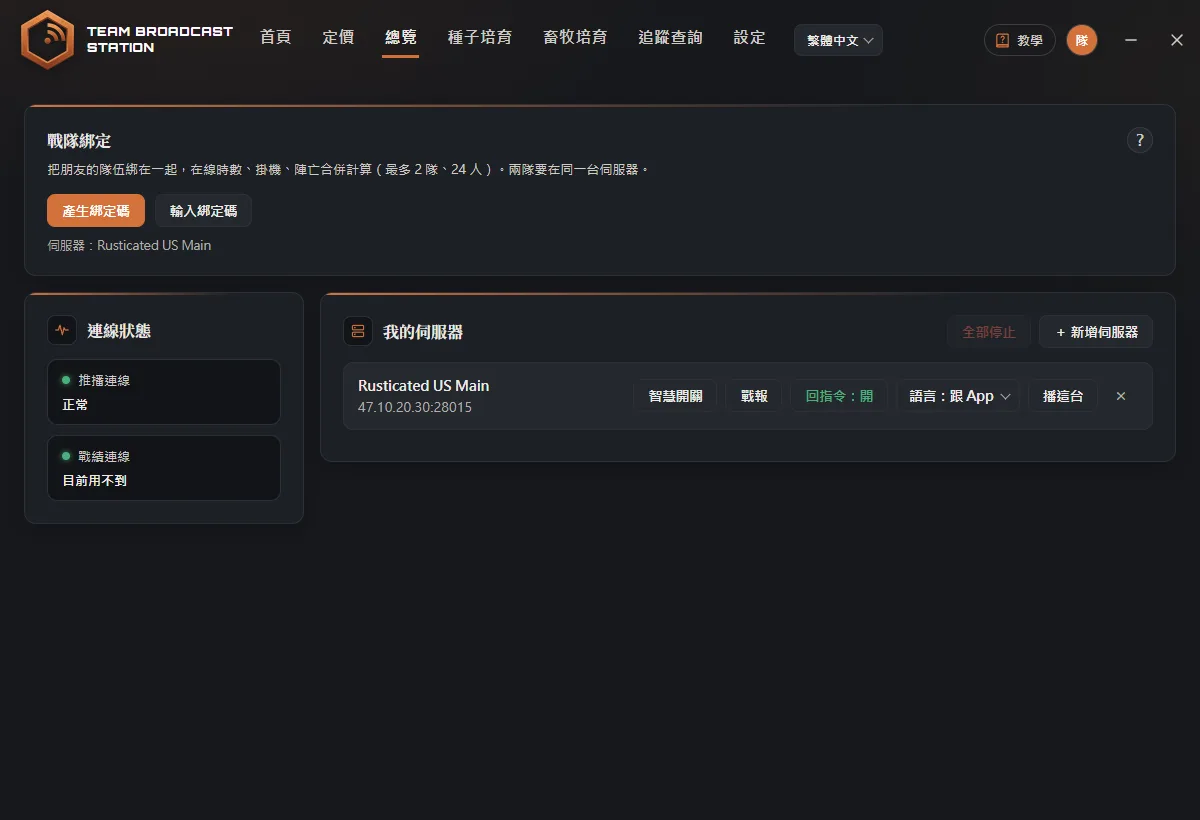
Back in the app, go to Overview (總覽) and click + Add Server (+ 新增伺服器) in the top-right of My Servers (我的伺服器). A "Waiting for pairing… (監聽配對中…)" window pops up. The spinner means it's waiting for the game to send a pairing request.
Click Pair in the game
Switch back to the game, press ESC, open the Rust+ tab, and click Pair next to this server.
TipDo this within 5 minutes. If time runs out, click Add Server (新增伺服器) again.The server appears in the list
When pairing succeeds, you hear a sound, the spinner window closes, and the server appears in My Servers (我的伺服器). Each server gets its own row with its name and address.
TipYou can pair several servers and broadcast on all of them at once.Click Start (播這台)
Click Start (播這台) on that row. The button first shows Starting… (啟動中…), then changes to Stop (停止), and Broadcasting (播報中) appears next to the server name. That means it's running.
Check in-game chat
Go back to the game and open chat. From now on, teammates going online and offline, deaths (with the map grid, for example G12), starting and ending AFK, leaving the team, and your Smart Alarms going off (with the alarm's name) are posted automatically. So are events like Patrol Heli, Cargo Ship, Chinook, Large Oil Rig, Locked Crate, and Travelling Vendor. Several people coming online together are combined into one line, and deaths and base alarms are posted first. If you're in an in-game clan, alerts go to clan chat; if not, they go to team chat.
TipAlerts are posted in chat under your own in-game name, so connect Rust+ with the Steam account you play on.Set Chat Commands (回指令)
Chat Commands: On (回指令:開) on that row means the app replies when teammates type commands like !help. Click it to switch to Chat Commands: Off (回指令:關); the app then only posts alerts and doesn't reply to commands.
TipIf several people on the same team run the app, keep Chat Commands: On (回指令:開) on just one of them and turn it off for everyone else. Otherwise you get several copies of every reply.Choose what gets posted (Alert Settings)
Click Alert Settings (播報項目) on that row to turn each kind of alert on or off: Online / Offline, AFK Start / End, Teammate Died, Map Events, and Base Alarms. Click Save (儲存) and it takes effect right away, no restart needed. When something is turned off, the button shows Alerts (N off) (播報項目(關 N)).
TipBig team with lots of logins? Turn off just Online / Offline. Deaths and base alarms still get posted.Choose the broadcast language
Click Lang: Same as App (語言:跟 App) on that row to switch to Lang: English, Lang: Chinese (T) (語言:繁體), or Lang: Chinese (S) (語言:简体). The next alert uses the new language. Command replies use this language too.
Stop broadcasting
To stop one server, click Stop (停止) on its row. To stop everything at once, click Stop All (全部停止) in the top-right of My Servers (我的伺服器).
TipWhile a server is broadcasting, clicking × only minimizes the app to the system tray (next to the taskbar clock) and it keeps broadcasting. If nothing is broadcasting, clicking × closes the app. To fully exit, right-click the tray icon and choose Stop All & Quit (全部停止並結束). Logging out also stops all broadcasts.Remove a server
If you no longer play on a server, click the × at the far right of its row. After you confirm, that server's Smart Switches and AFK records are cleared too. To use it again later, just pair it again.
FAQ
Does my PC have to stay on?
Yes. Broadcasting runs on your PC, so it stops if your PC shuts down or goes to sleep. While a server is broadcasting, clicking × only minimizes the app to the system tray (next to the taskbar clock) and it keeps broadcasting. If nothing is broadcasting, clicking × closes the app. To fully exit, right-click the tray icon and choose Stop All & Quit (全部停止並結束). Logging out also stops all broadcasts.
I clicked Pair, but it kept spinning and then said "No pairing received within 5 minutes (5 分鐘內沒收到配對)"?
Make sure you used ESC → Rust+ → Pair next to the server in the game, then click Add Server (新增伺服器) again. In mainland China, turn on your VPN first. Also check whether Rust+ Pairing (推播連線) under Connection Status (連線狀態) has a red outline. If it does, click Re-pair (修復) first.
The server shows "Disconnected. Retrying in Ns (斷線了,幾秒後自動重試)"?
The app reconnects on its own; usually you just need to wait a moment. If it shows "Keeps disconnecting, auto-retry stopped (一直斷線,已放棄自動重試)", click Stop (停止) and then Start (播這台) to restart it.
Pairing didn't work?
The app shows "Pairing didn't work. Click "Add Server" again (配對沒有成功,請再按一次「新增伺服器」)". In mainland China, turn on your VPN first.